Blog · Creating cards
Use AI to easily build a study deck that you can print for free
Leverage AI to study smarter: use an AI chatbot like ChatGPT, Claude or another to create flashcards, then use FlashcardPrinter to turn them into physical flashcards.
Here’s how, using plant cell anatomy as an example.
Ask AI to create your cards
Open ChatGPT, Claude, or your preferred AI tool. Tell it what you’re studying and the level you need. Add your study notes to help it focus on your course.
Ask for a CSV file.
Copy this prompt and fill in the brackets:
Create [number] flashcards about [topic] for [course / year level], using the notes below. Keep questions focused and answers brief.

Provide a downloadable CSV file for use in flashcardprinter.com, with questions in the first column, answers in the second, and no header row.

Notes:
[paste your notes]
For example, ask for 20 cards about plant cell anatomy for your biology course. Download the CSV when it’s ready. If the AI gives you text instead, ask it to provide a downloadable .csv file.
Before studying: AI can make mistakes, so check the questions and answers against your notes or textbook and correct anything that needs changing.
Import them into FlashcardPrinter
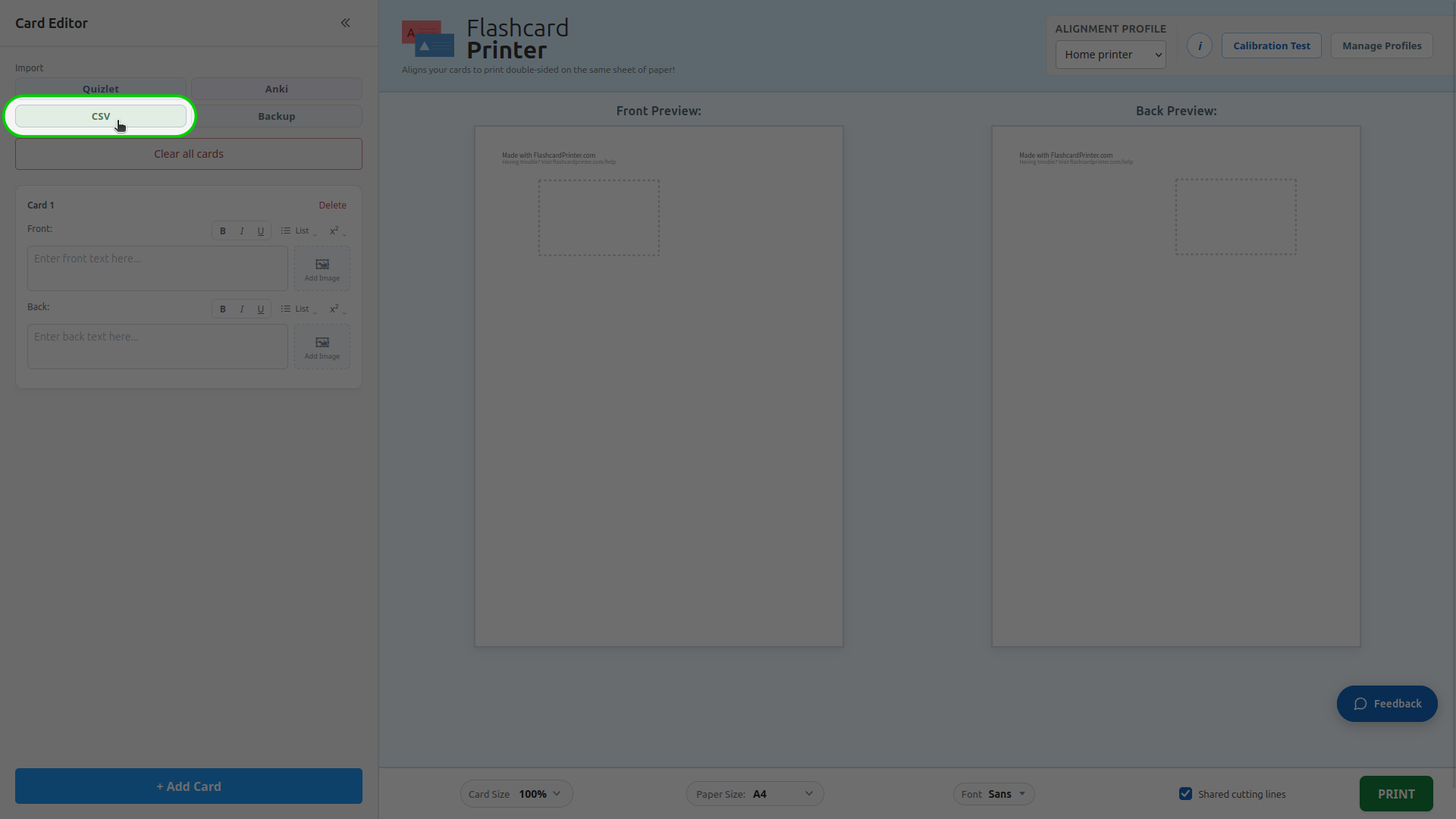
Open FlashcardPrinter and click CSV under Import in the Card Editor. Select the file you downloaded.
If you already have a deck open, save it and clear the editor first so the new cards stay separate.
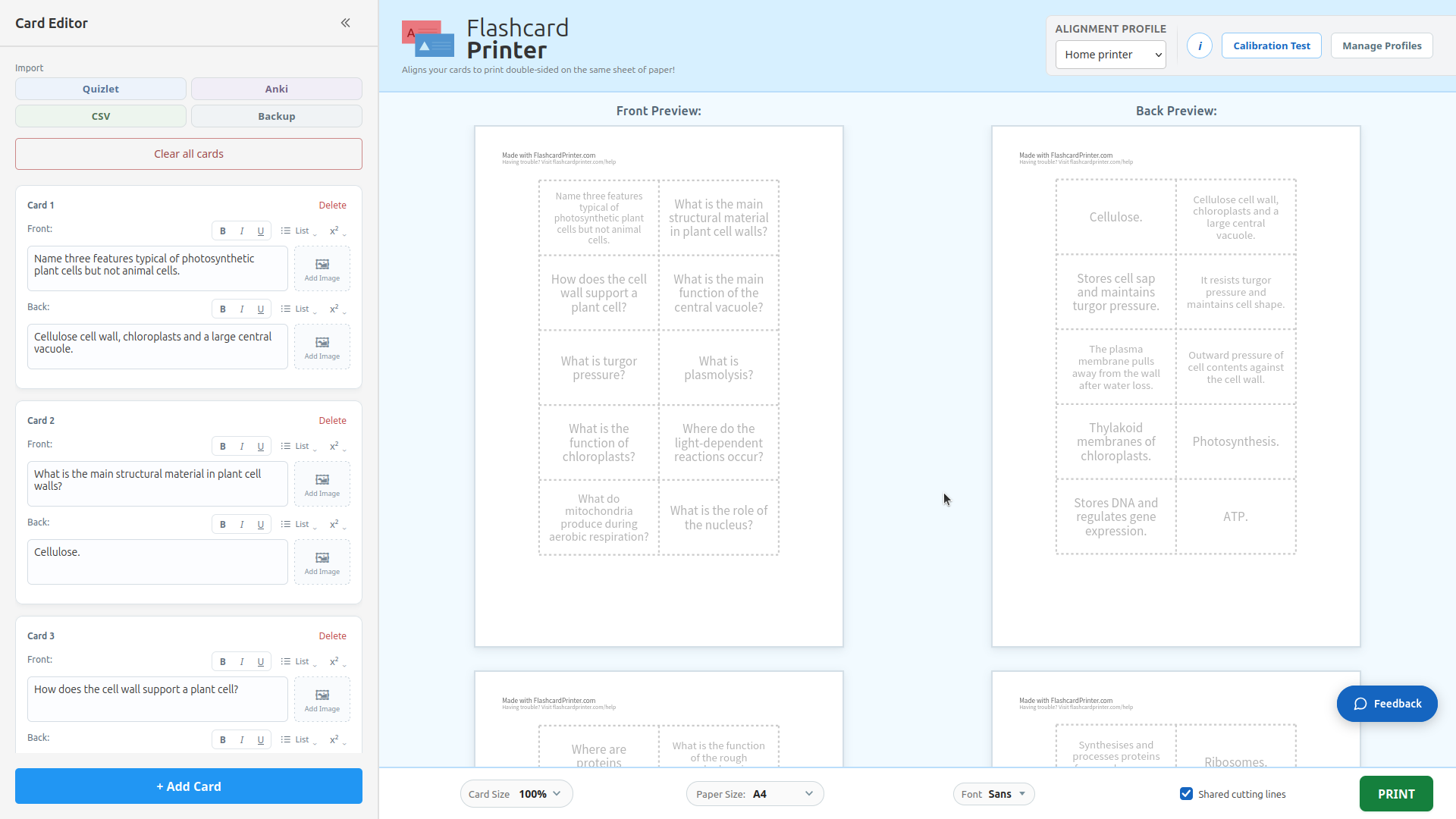
Your questions and answers will appear in the editor, with the fronts and backs laid out for printing. You can edit the wording, choose a font, and adjust the card size here.
Print, cut, and study
Choose your Paper Size and use Calibration Test to align the fronts and backs for your printer. If you’ve already calibrated it, select your saved Alignment profile.
Click PRINT to print or download a PDF. In your printer settings, use 100% / actual size and double-sided printing with flip on long edge. Try the first sheet before printing the full deck.
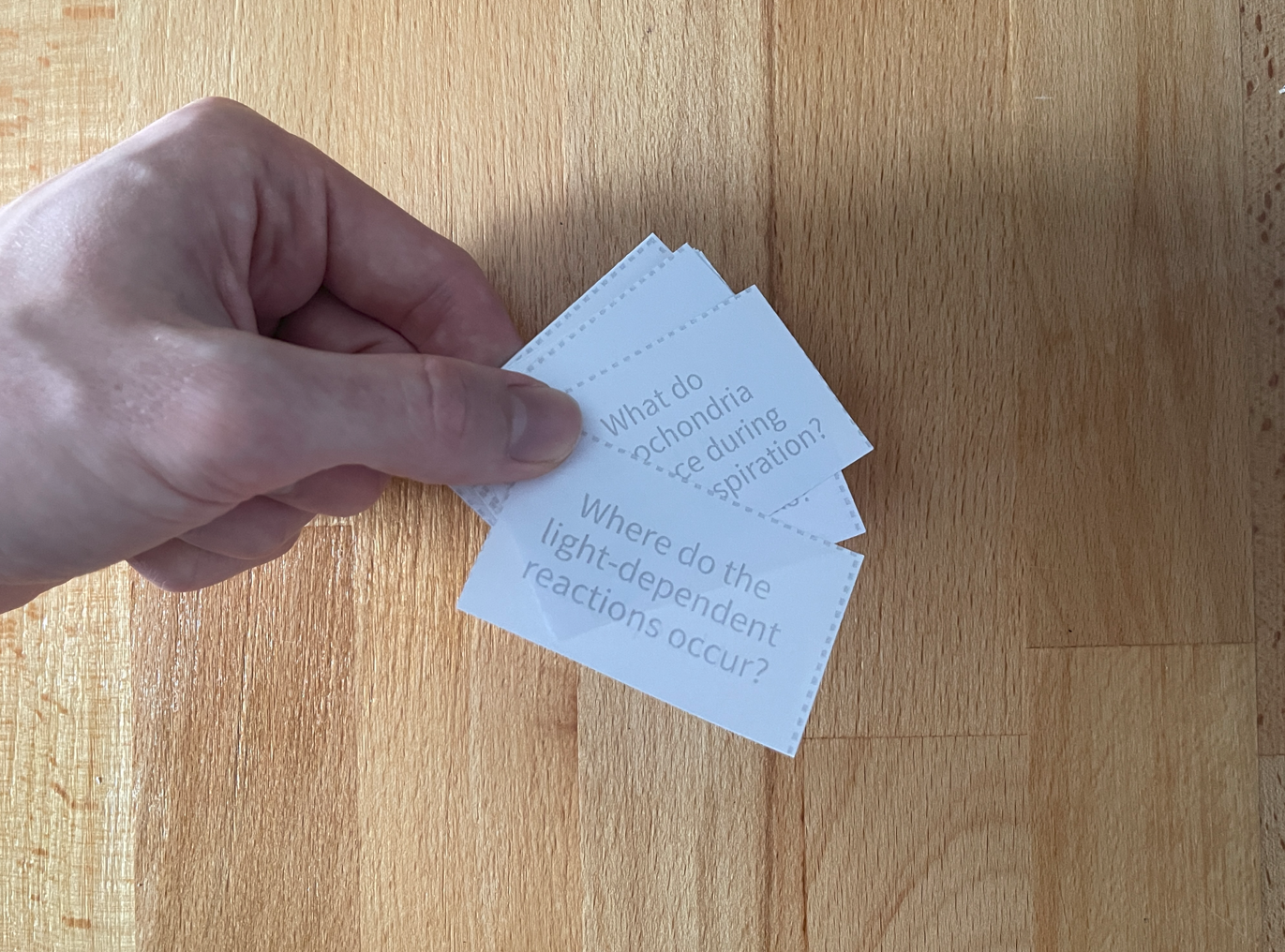
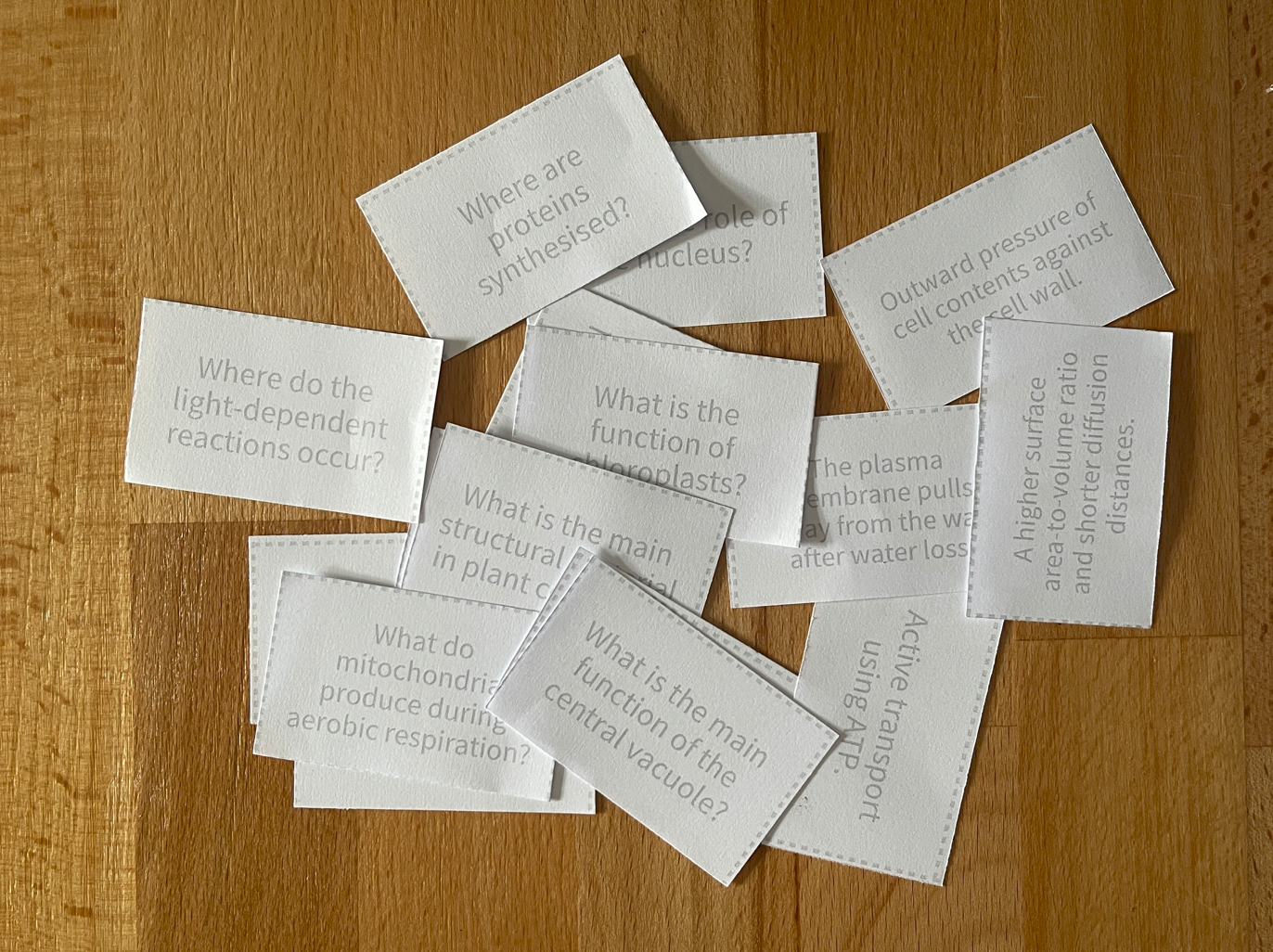
Cut along the guides and you’re ready to study. Read a question, try to answer from memory, then flip the card to check. Keep the deck handy for a quick review whenever you have a few minutes.