Aligns your cards to print double-sided on the same sheet of paper!
Optional. Use when double-sided prints do not line up on your printer.
Front Preview:
Back Preview:
Card Size
FontSans
Card Styling
Font
Calibration Test
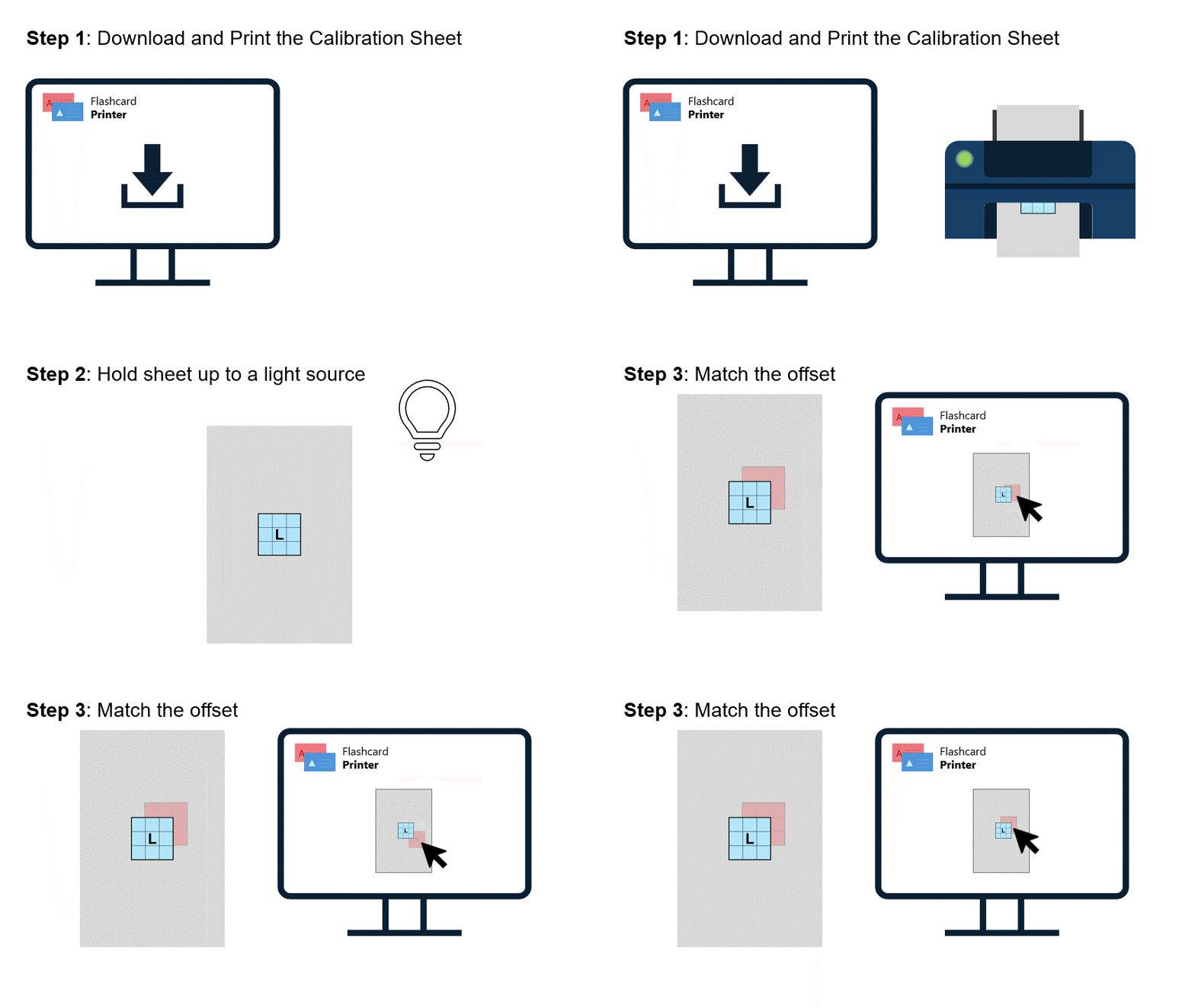
Step 1: Click "Download Test Page" to create a PDF with calibration squares.
Step 2: Print the PDF double-sided on your printer using flip on long edge (also use long edge when you print your final flashcards). Press "Next".
Adjust Calibration
L
R
Instructions: Hold your printed test page up to a light source, looking at the side with the L.
Adjust the red rectangle below to match the alignment you see through the paper.
Duplex: Calibration and final cards assume double-sided printing with flip on long edge.
Profile name already exists. Choose a different name.
Manage Calibration Profiles
Import from Quizlet
Step 1: Navigate to your flashcard set on Quizlet.
Step 2: Press the three dots button (called 'More').
Step 3: Click 'Export'.
Step 4: Click the 'Comma' button (this ensures the items are comma separated).
Step 5: Copy the text from the export window.
Step 6: Paste the copied text in the field below.
Import Anki deck
In Anki, when exporting your deck:
✅ Check Include media
✅ Check Support older Anki versions
Then drag your .apkg file below or click the box to choose a file.
Drag .apkg file here or click to browse
Large file
This file is extremely large and may slow down or freeze your browser while it is processed. You can cancel and try a smaller export, or continue if you are willing to wait.
Clear all cards?
This will remove every card in your deck. Deleted cards cannot be restored. Press Export Cards to save a backup of your cards as a CSV file (This only saves the text of your cards, it will not save images or styling).
Warning
No printer calibration is selected. Your cards will still print double sided but won't be aligned properly.
How calibration works
Print Options
Print
Download PDF
Export Cards
Printing Instructions
Your flashcards have opened in a new tab, ready to print.
To print correctly:
1. In the new tab, use your browser's print controls (for example, Ctrl+P or Command+P).
2. Select the same paper size you chose above and set the scale to 100%.
3. Enable double‑sided printing and choose flip on long edge (same as for your calibration test).
If the print does not look right, you can adjust your settings and try again.
👏Start Here - Step 1
Insert flashcards manually or import them using the buttons above.
Tip: Use the "Import CSV", "Import Quizlet", or "Import Anki" buttons to quickly add multiple cards.
⚙️Step 2
Create a calibration profile by test printing a page to determine your printer's offsets.
Tip: Print your calibration sheet with the same settings you will print your cards with.
🎨Step 3
Click on a flashcard in the preview page to open up settings to customize its appearance.
Tip: You can change font color and alignment for individual cards or apply to all.
🖨️Step 4
When you are satisfied with your flashcards, you can export them as a PDF or print them directly.
Tip: You can print direct from the browser, download as a PDF or export cards to re-open later.
Feedback
Warning: Your selected calibration profile was created for a different page size than your current paper size.